Поиск по моему блогу

Показаны сообщения с ярлыком Dialog box. Показать все сообщения

Настройка Winprint HylaFAX

Winprint HylaFAX

SourceForge.net Logo

Installation Instructions

Winprint HylaFAX is a Windows print monitor designed to send its output directly to a HylaFAX Server. Once installed, you can print to a HylaFAX Server from any application, and it will pop up a simple dialog box, allowing you to enter the destination FAX number. It's not intended to be fancy or all encompassing, just a quick and easy way to send FAXes from any Windows application
It can be downloaded here. To go to the sourceforge pages for this software to comment, report bugs, or get source code, click here.
It is packaged in the form of a Windows Installer, which installs the required sets of .DLL files and registers the monitor with the system. This adds support for a new type of port to your system, called a "WinPrint HylaFAX Port." Once you've successfully installed the files, setup is straightforward, but it has a number of steps. First, you'll want to create an appropriate PostScript printer using the "Add Printer" button. You want to select a "Local printer," but since it's not a physical printer, uncheck the "Automatically detect and install my Plug and Play printer" box.
Next, you'll be asked what port to use. Select the radio button "create a new port type." If the installation went well, you should see "Winprint Hylafax" as one of the options. The drop list might scroll, so it may not be obvious that it's at the bottom of the list. (If it doesn't appear on the list at all, something went wrong with your installation.)

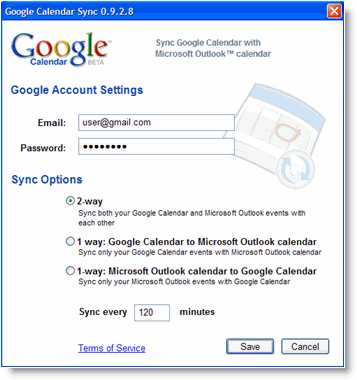
Google Calendar Sync — синхронизация календаря Google с Microsoft Outlook

Image representing Google Calendar as depicted...Image via CrunchBaseGoogle представила небольшую утилиту, которая служит для синхронизации событий из календаря Google с календарем Microsoft Outlook.

Синхронизировать можно как в двух направлениях, так и в каком-то одном (настраивается опционально). Так же на данный момент единственным недостатком является то, что вы можете синхронизировать только основной календарь Google (но в будущем обещают исправить данный недостаток).


Инструкции по установке здесь.

Источник: Google Operating System (англ.)

_______________________________________________________________


To set up Google Calendar Sync:

  1. Make sure you're using a supported operating system and Outlook version.
  2. Download Google Calendar Sync (version 0.9.3.6) at http://dl.google.com/googlecalendarsync/GoogleCalendarSync_Installer.exe
  3. Once a dialog box appears, click Save File. The downloaded file should open automatically. If it doesn't, manually open it from your browser's download window.
  4. Click OK to confirm that you're aware this is an executable file.
  5. Read through the Google Calendar Sync Terms of Service, and click I Agree.
  6. Follow through the Installation Options and click Install to finish the set-up process.
Once Google Calendar Sync is installed on your computer, the Google Calendar Sync Settings window will appear:

Google Calendar Sync Settings window
In the Settings window, enter your email address and password and select the Sync Option you prefer. Read about each Sync Option.

Реклама от BigBN